Business details filled in when you add a customer
Search for a business, pick it, and the form fills in
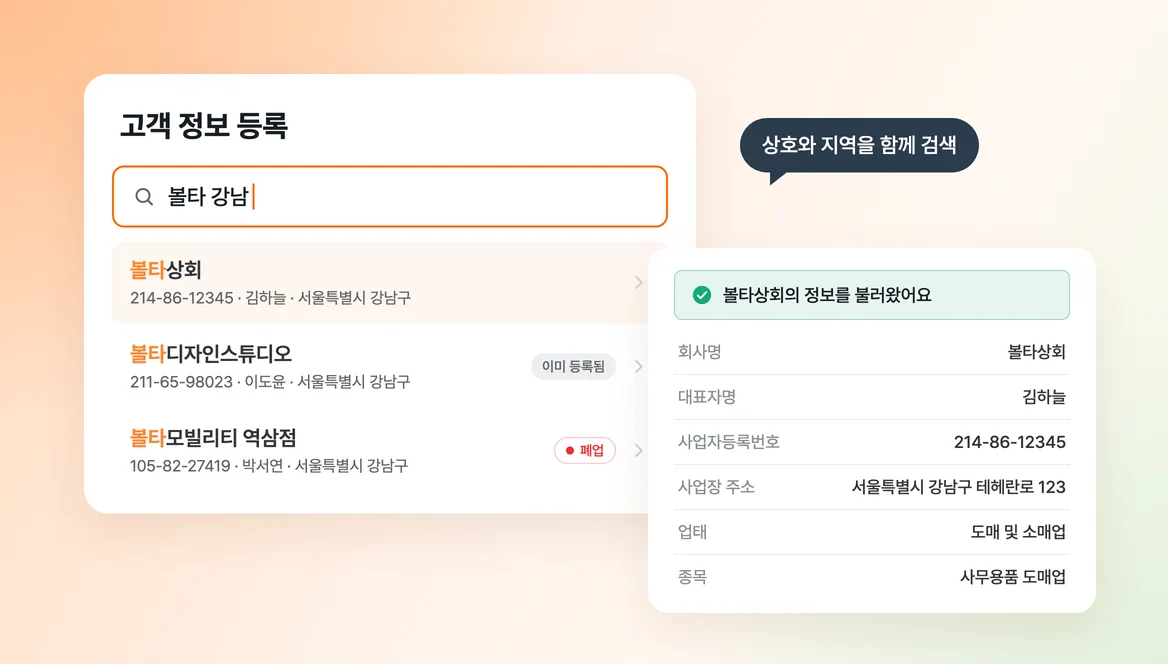
Adding a new customer used to mean copying the business name, representative and address from a business registration certificate, one field at a time.
Now you search for the business and pick it. The business name, representative, business registration number, business address, business type and business item fill in on their own.
Search looks beyond the business name. Type part of a name followed by a district, such as Gangnam, and you get businesses with that name in that district. A name followed by the representative's name works too. Even when hundreds of shops share a name, two things you already know narrow it down to the one you want.
Customers you have already added are marked as already registered, and closed businesses are marked as closed. You avoid adding the same customer twice or registering a business that has shut down.
How to use it:
- Open Customers and start adding a customer.
- Search by business name, business registration number or representative. Add a district or the representative's name after a space to narrow the results.
- Pick a result and the details fill in. Check them, add a contact person and save.
- The same search opens when you add a new customer while issuing a tax invoice.
- If a business does not show up, enter its details yourself.
The details come from public data, so some fields may be empty. Check them before you save.