Improvement
Slack channel notifications
Share Bolta notifications with your team channel
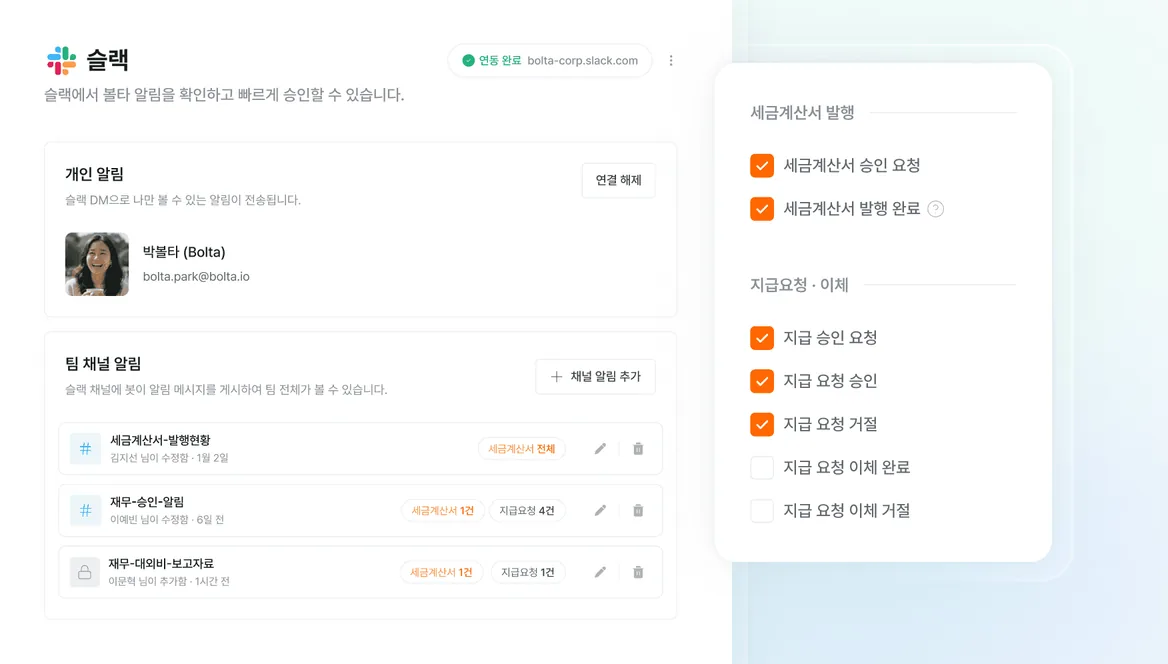
Notifications that used to arrive as a direct message can now go to a shared channel.
Keep the whole team on the same page as work happens.
How to use it:
- Add a channel in notification settings and pick what it should receive.
- Issuance, request, and rejection notices go to that channel automatically.
- Approve or reject straight from Slack.
Private channels:
Private channels take one extra step.
- In the private channel, type /invite @Bolta to add the Bolta bot.
- Select that channel in Bolta's notification settings.
- Pick the notifications you want and save.
A private channel stays visible only to the members who were invited to it.
If the setup gives you trouble, reach us through the chat widget.